Contents
MicroK8s Setup
Setting Up Kubernetes
This tutorial is based on Official microk8s docs.
Requirements: An instance of Ubuntu 20.04 LTS
- that is up-to-date via
sudo apt update&sudo apt upgrade - that can be accessed via
ssh - that supports
snapd - where ports
22 (ssh), 80 (http), 442 (https)are open to the internet.
Check here to learn more about the server setup in the BW-Cloud.
For our project, we will run a production ready version of Kubernetes that is called microk8s and which is developed and maintained by the publishers of Ubuntu (Canonical). The major advantage of MicroK8s is its easy setup. It includes a variety of add-ons that make creating a running Kubernetes environment fairly straight forward. These add-ons remove the overhead of setting up the Kubernetes-Dashboard, Ingress-Resources and storage. I want to run a standard, single node Kubernetes cluster, thus makes sense to take a solution that works right out of the box.
Installing MicroK8s
Objective: We will start by installing MicroK8s, deploy a dummy application and view the Kubernets dashboard in our browser.
sshinto your server. We will use thekubectl proxycommand later to view the K8s-Dashboard on our server, for this we need ansshtunnel. Create it like this:ssh -L localhost:8001:127.0.0.1:8001 remoteUser@remoteHostInstalling MicroK8s is a single command:
sudo snap install microk8s --classicTo run MicroK8s as the logged-in user, add them to the microk8s user group and reenter the session:
sudo usermod -a -G microk8s $USER
sudo chown -f -R $USER ~/.kube
su - $USER
Wait for MicroK8s to be ready:
microk8s status --wait-ready

> microk8s is running ...
Further Setup
Your Kubernetes cluster is now ready to be used. You can access the kubectl
command via microk8s kubectl. Before we deploy our first application, we need
some further setup:
For convenience, it is recommended to add an alias to your
.bashrc:vi ~/.bashrc # add to bottom of .bashrc alias kubectl='microk8s kubectl' # save and exit # use your changed .bashrc source ~/.bashrcFrom now on you don’t need to type
microk8s kubectljustkubectlwill do it.To get an overview of what is running in your freshly created cluster, run:
kubectl get all --all-namespacesNow we use the power of MicroK8s and just enable a few add-ons to use the Kubernetes-Dashboard.
- dns: Deploy DNS. This add-on may be required by others, thus we recommend you always enable it.
- dashboard: Deploy Kubernetes dashboard.
- ingress: enables a nginx-ingress-controller
- helm3 we will need it later
To enable run:
microk8s enable dns dashboard helm3 storage ingressWait until the respective resources are ready. You can check via
kubectl get all --all-namespaces
Taking a Look at the Kubernetes Dashboard
In this step, you will run the
kubectl proxycommand. This will create a reverse-proxy, so we can access the cluster. Without thesshtunneling from the first step, we would now only be able to access the Dashboard from the localhost of our remote server. This is not very useful as we want to see the dashboard in the browser on our system. That’s why we created the ssh tunnel earlier. Here, we have bound127.0.0.1:8001of the remote system to ourlocalhostat port8001. After you started the proxy, open a new terminal where you will run the following commands.kubectl proxy > Starting to serve on 127.0.0.1:8001 # leave it open to let it keep running # open a new shell and ssh into your server using: ssh username@hostWe can now access the dashboard here. The access token we will need to log in can be acquired using the following command:
token=$(microk8s kubectl -n kube-system get secret | grep default-token | cut -d " " -f1)

microk8s kubectl -n kube-system describe secret $token
The token can be copied from the output and pasted into the login form.
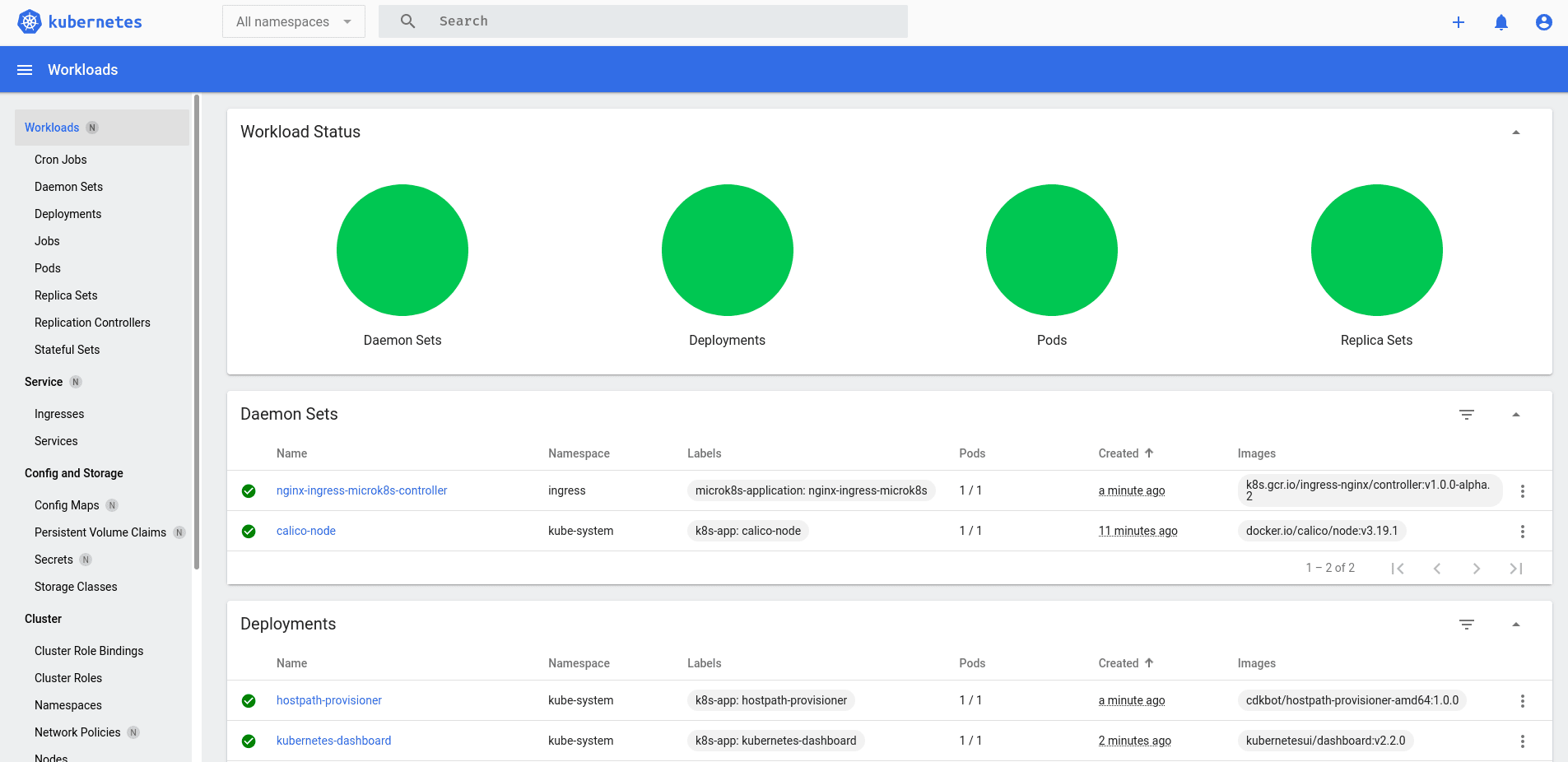
The dashboard should look something like this:
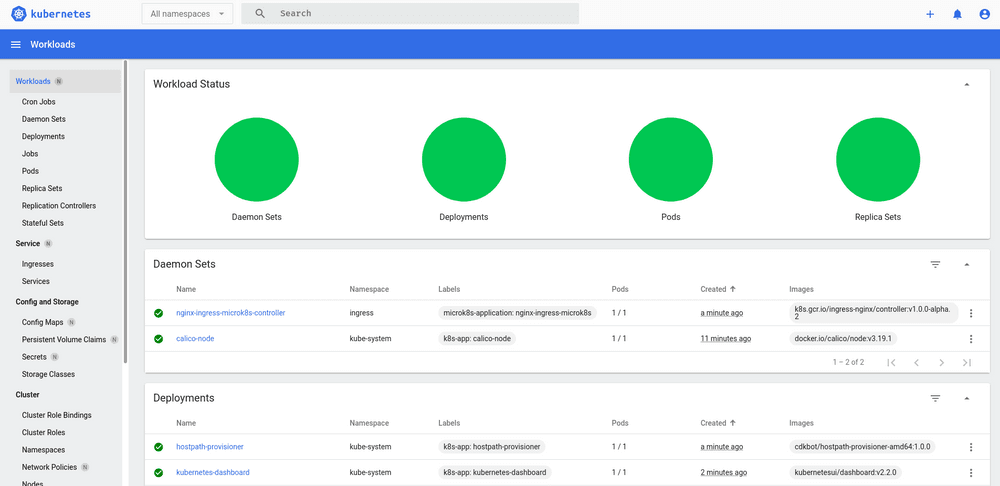
In the picture we see a microbot, a dummy application, is deployed. To also deploy this and to make sure your dashboard is working run:
kubectl create deployment microbot --image=dontrebootme/microbot:v1You can then scale your deployment
kubectl scale deployment microbot --replicas=2
Open your deployment to the internet
Objective: Be able to excess the microbot under our url over the open internet.
For the next step, we will want to expose our microbot to the internet. In Kubernetes, we need an ingress resource to relay traffic to our internal services. These services are an abstraction layer on top of pod deployments. We already have created a deployment in the last step of the previous section. So in this section we will create
- a microbot deployment
- a microbot service
- an ingress that routs traffic to the above service
Let’s dive in!
Configure the Cluster IP
We need to specify the IP under which our cluster is accessible. To do this we need to edit /var/snap/microk8s/current/certs/csr.conf.template like this:
vim /var/snap/microk8s/current/certs/csr.conf.template...
[ alt_names ]
DNS.1 = kubernetes
DNS.2 = kubernetes.default
DNS.3 = kubernetes.default.svc
DNS.4 = kubernetes.default.svc.cluster
DNS.5 = kubernetes.default.svc.cluster.local
IP.1 = 127.0.0.1
IP.2 = 10.152.183.1
IP.100 = THE IP OF YOUR INSTANCE HERE
#MOREIPS
...After this you need to restart microk8s.
microk8s.stop
microk8s.start
Applying the First Manifest
We want to add labels to connect deployment and services. For this we will recreate the microbot deployment. From now on, we will use YAML files to define our resources. These files have the advantage that they are easier to maintain than simple CLI commands. We delete the previously created deployment.
kubectl delete deployment microbotThen we create a microbot-deployment.yaml file:
apiVersion: apps/v1
kind: Deployment
metadata:
  name: microbot-deployment
  labels:
    app: microbot
spec:
  replicas: 1
  selector:
    matchLabels:
      app: microbot
  template:
    metadata:
      labels:
        app: microbot
    spec:
      containers:
        - name: microbot
          image: dontrebootme/microbot:v1
          ports:
            - containerPort: 80
And apply the manifest.
kubectl apply -f microbot-deployment.yaml

# check if deployment was created
kubectl get deployment
Next, we create the microbot service. Create a microbot-service.yaml and edit it to be as follows.
apiVersion: v1
kind: Service
metadata:
name: microbot-service
spec:
selector:
  app: microbot
ports:
  - protocol: TCP
    port: 80
    targetPort: 80
To create the service run:
kubectl apply -f microbot-service.yaml

# check if service was created
kubectl get services
You now have created an Deployment and a Service. Look at your Dashboard to make sure they are both there.
Configuring an Ingress
Next, we will configure an ingress. Before we want to have a domain pointing to our cluster. For this, you have to log into the domain provider and edit the A-record to point at the public IP(v4) address of the server where your cluster is running.
For example my (sub) domain is mapped like this:
project1.oforest.jasperanders.xyz -> 193.196.36.149If you don’t own a domain, you can also add the domain to your local machine by editing your /etc/hosts (“I don’t know what this is!”).
With this out of the way, we can finally create the ingress resource. Again using a YAML definition file, microbot-ingress.yaml
apiVersion: networking.k8s.io/v1
kind: Ingress
metadata:
name: microbot-ingress
spec:
ingressClassName: public
rules:
- host: your.domain.here
  http:
    paths:
      - path: /
        pathType: Prefix
        backend:
          service:
            name: microbot-service
            port:
              number: 80
Apply the manifest and check for ingress resource.
kubectl apply -f microbot-ingress.yaml

# check if ingress was created
kubectl get ingress
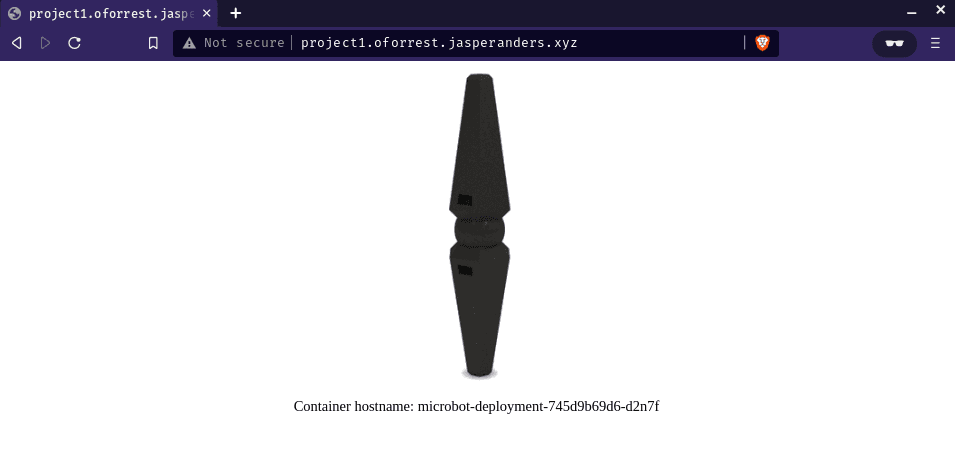
We now find our microbot service exposed to the internet at the provided domain. Congratulations!
Limit Resource Usage
Currently, GitLab Runners have a bug that won’t make them work with namespace ResourceQuotas. Instead, we want to use a LimitRange.
I ran in to some problems after a pod requestet too much memory. I had to force quit all processes. To prevent this from happening you can create caps on resource usage.
I created a cap on memory usage (limit-range.yaml) for the default namespace.
# limit-range.yaml
apiVersion: v1
kind: LimitRange
metadata:
  name: mem-limit-range
spec:
  limits:
    - default:
        memory: 512Mi
      defaultRequest:
        memory: 256Mi
      type: Container
# !! Recommended but currently not working !!
# check the bug status above
# Config with resource quota
apiVersion: v1
kind: ResourceQuota
metadata:
name: mem-quota
spec:
hard:
limits.memory: 6Giand applied it.
kubectl apply -f limit-range.yaml

# check if ingress was created
kubectl get limitRange
To get an overview of the resources used by your pods, use this command:
kubectl top podThis concludes the tutorial for setting up and exposing a microbot to the Internet on a microk8s cluster.
Cleanup
After you are done, you should delete the resources connected to your microbot you just created. You should delete an ingress, a service and a deployment. To make things easier, you can delete resources defined in a YAML file. Just delete the resource we just applied like this:
kubectl delete -f MANIFEST.yamlThe actual deployment files for this project can be found in this GitLab Repo (under zz_kustomize). You can apply them by running:
kubectl apply -k zz_kustomizeRead Next
Designed & Developed by Jasper Anders